

iLOQ S50 · GUIDE
iLOQ Mobile Key
Activation · Everyday use · iPhone & Android · 5 steps


Did your registration SMS not arrive?
You can request a new registration SMS through My Account.
- Sign in to your account and open the relevant rental details.
- Choose “Prístupy do skladu” (Storage access), then select “Znovu poslať registráciu kľúča” (Resend key registration) for your key.
- Open the new SMS link on the phone with iLOQ S50 installed and complete registration using the guide below.
The SMS goes to the original phone number assigned to the key. If the button is unavailable or you need to change the number, contact us at +421 940 998 703.
Open My Account →One-time setup
Activating your mobile key
Open the SMS and download the app
Open the SMS from iLOQ containing a link. Tap the link and install the iLOQ S50 app.
The link is valid for 5 days.
iPhone → App Store · Android → Google Play
Tip: Don’t open the app just yet.
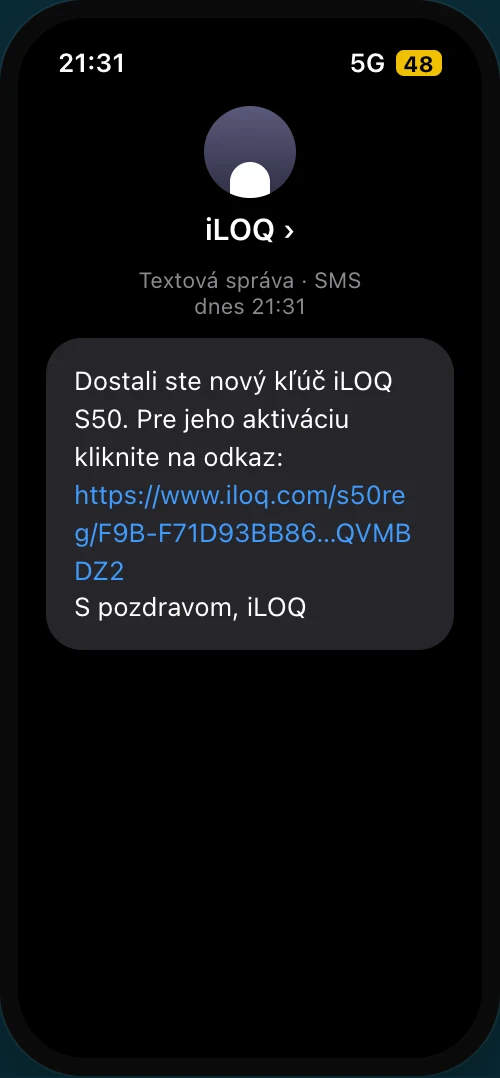
Screen example Open the activation from the link
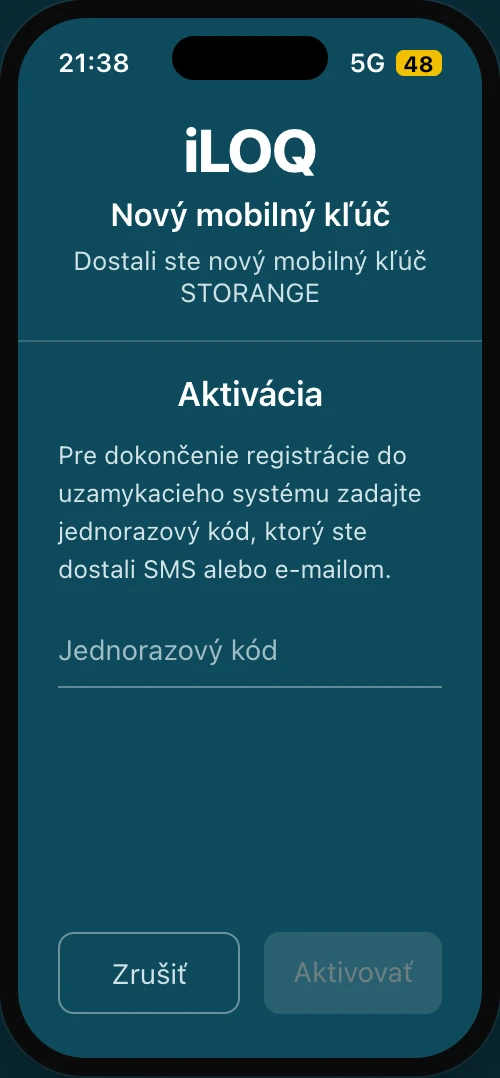
Once the app is installed, go back to the SMS and tap the same link again. The iLOQ app will now open directly on the Activation screen.
You will see the system name STORANGE and an empty One-time code field.
Leave the field empty for now — the code will arrive in another SMS, usually within 3 minutes.
Screen example Wait for the next SMS from iLOQ
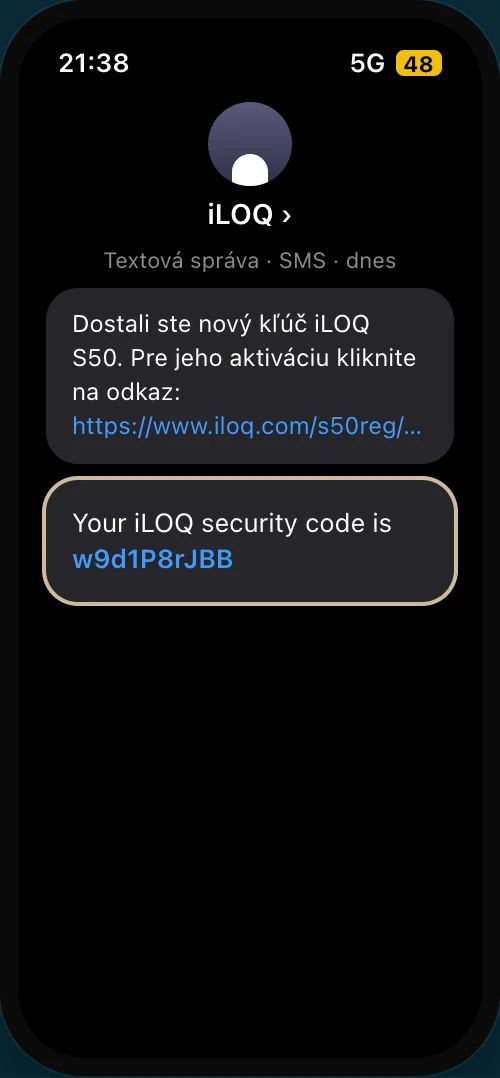
Within 3 minutes you will receive a second SMS with a one-time security code — for example w9d1P8rJBB (example — your code will be different).
Security: The code is valid only briefly and can be used once. Never send it to anyone or read it out loud.
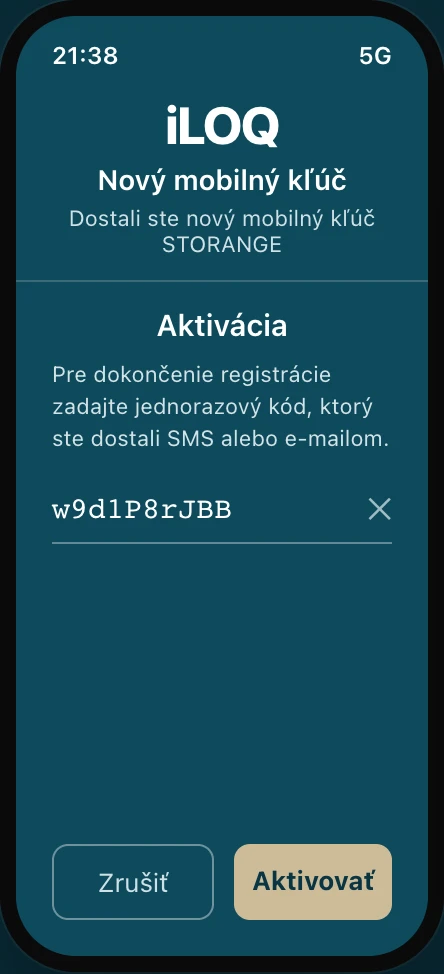
Screen example Enter the code and activate
Copy or type the code from the SMS into the One-time code field and tap Activate. The key on your phone will be paired with the lock of your storage unit.
Done: On the home screen, the Mobile key switches from Disabled to Enabled.
Screen example
Every time you enter
Unlocking your storage unit
Unlock the lock with your phone
Open the iLOQ app. On the home screen, tap Use key. Based on your phone model, the app shows the exact position of the NFC antenna — hold precisely that part of the back of your phone against the lock.
The Ready to scan screen appears with the antenna locator. Hold the highlighted part of your phone against the lock — the position varies by model (on iPhone it is the top part).
Android: make sure NFC is enabled in your settings. On iPhone, NFC is active automatically.
Hold still. Keep the phone motionless on the lock for about 3 seconds until unlocking completes.
Successful unlocking is indicated by green on the screen. Only then remove the phone.
Now turn the black knob — left to unlock or right to lock, until you hear a click.
The lock deactivates automatically after 10 seconds. To activate it again, repeat the procedure.
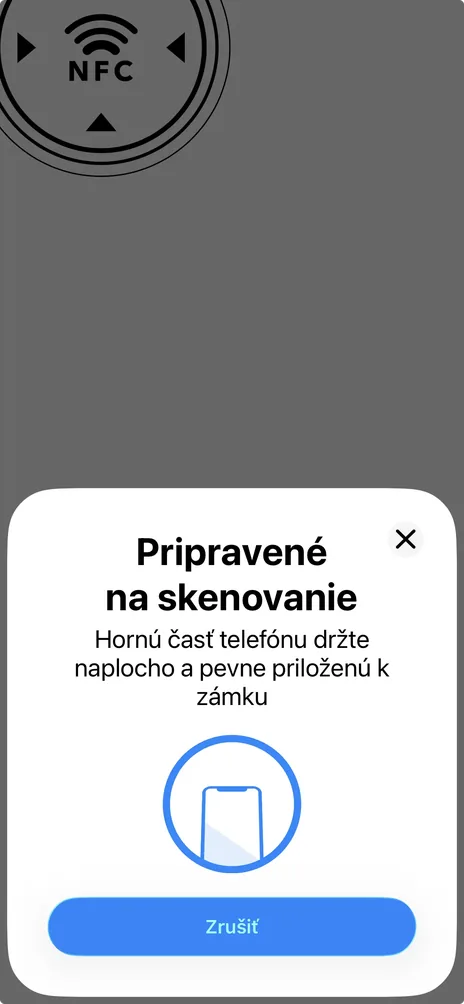
Screen example
Video: unlocking the lock with your phone
Choose your phone type: